

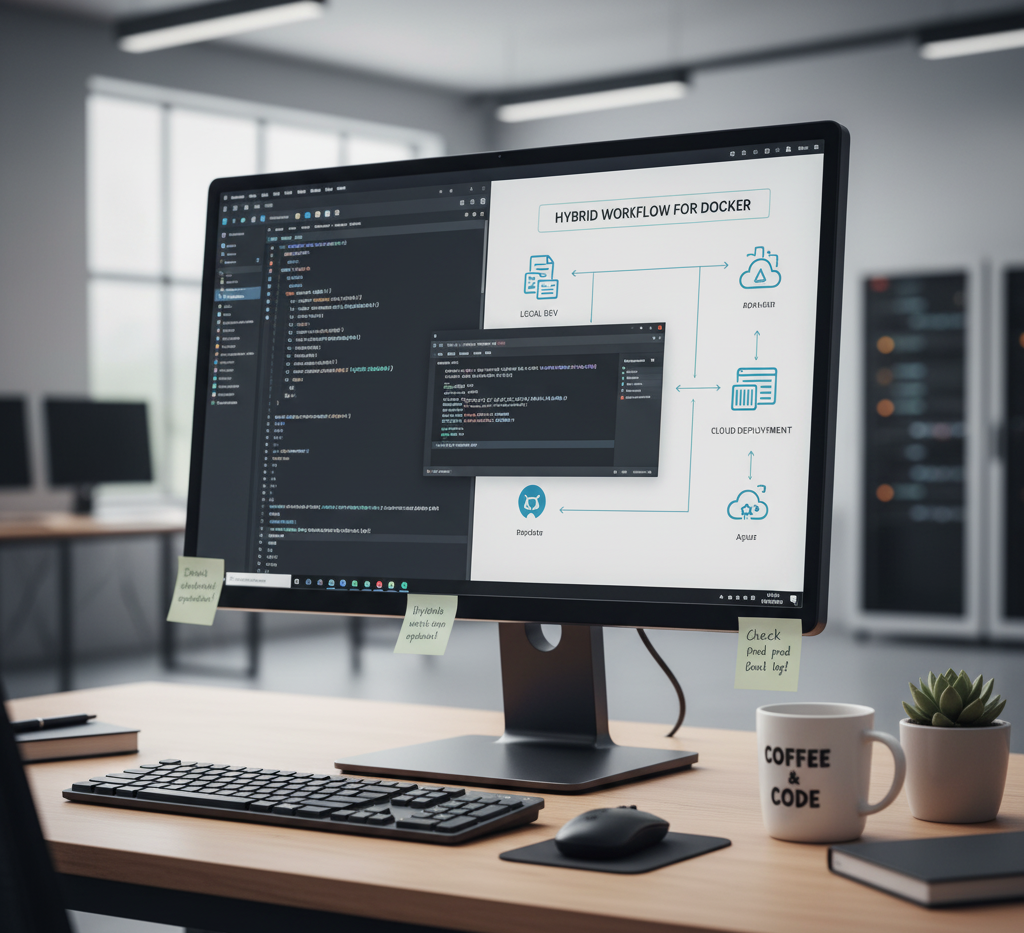
On Docker, you can combine the flexibility of NVM in development with the stability of system-wide Node.js in production containers. This way, you avoid the classic “it works on my machine” problem.
Hybrid Workflow: Dev + Prod Consistency with Docker
1. Local Development
Use NVM on your host machine so you can:
- Quickly switch between Node.js versions if different projects require them.
- Match the Node.js version used in your Docker image.
Example:
bash

# Install NVM if you haven’t already
curl -o- https://raw.githubusercontent.com/nvm-sh/nvm/v0.39.7/install.sh | bash
source ~/.bashrc

# Use the same Node.js version as your Dockerfile
nvm install 20
nvm use 20
2. Dockerfile (Production-Ready)
Use the official Node.js Docker images (they’re built and maintained by the Node.js foundation).
This ensures your dev and prod run on the exact same binaries.
Example Dockerfile:
dockerfile


# Start from an official Node.js 20 LTS image
FROM node:20-slim

# Set working directory
WORKDIR /app

# Copy package files first (better caching)
COPY package*.json ./

# Install dependencies
RUN npm install --production

# Copy app source
COPY . .

# Run your app
CMD ["node", "server.js"]
You can swap node:20-slim for node:20-alpine (smaller) or node:20 (full Debian-based).
3. Keeping Host + Docker in Sync
- On your machine (NVM):
nvm use 20 - In Docker:
FROM node:20-slim
Now, both environments use Node.js 20.
4. Optional: Lock Dependencies
To ensure even tighter consistency:
- Use a lockfile (
package-lock.jsonoryarn.lock). - Commit it to git.
- In Docker, run
npm ciinstead ofnpm install:
dockerfile

RUN npm ci --only=production
5. Workflow Summary
- Development
- Use NVM locally to match the version in your Dockerfile.
- Flexible for multiple projects.
- Production (Docker)
- Base image defines Node.js version.
- Consistent with your dev setup because both use the same version.
Your dev & prod environments are consistent, with Docker guaranteeing production stability, and NVM giving you dev flexibility.